
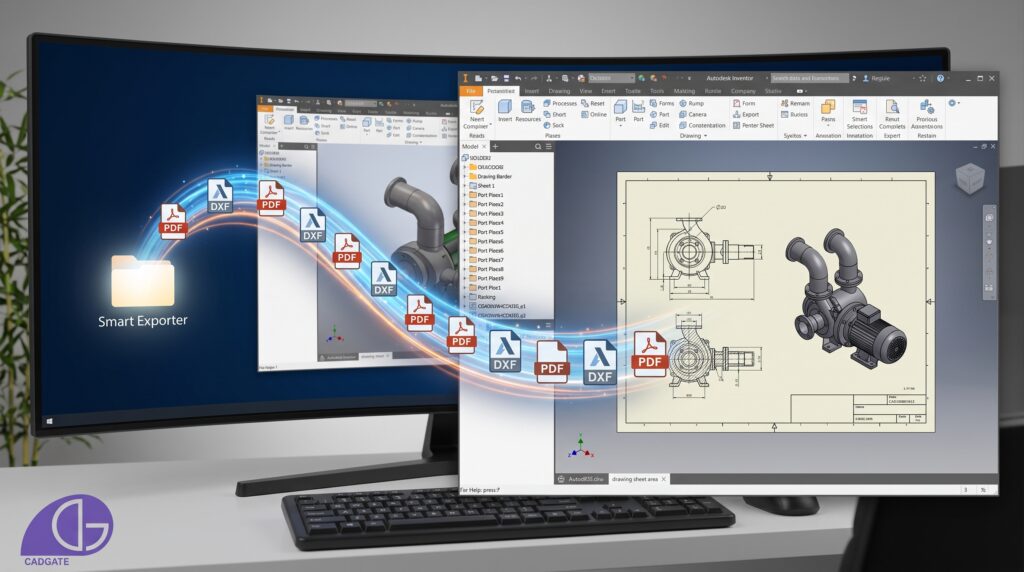
Every mechanical designer knows the feeling: You’ve just spent weeks meticulously designing a complex machinery assembly in Autodesk Inventor. The 3D modeling is flawless, the constraints are perfect, and the design is approved. But your job isn’t finished. Now begins the most tedious phase of mechanical engineering—generating 2D manufacturing drawings and extracting flat patterns.
Manually exporting individual PDF drawings and DXF files for laser cutting is not just boring; it is a massive drain on your engineering hours. In this guide, we will explore the hidden costs of manual data extraction and how you can streamline your .idw exports in Autodesk Inventor.
The Hidden Cost of Manual CAD Exports
In project-based machinery manufacturing, a single machine can contain hundreds of unique sheet metal parts. If a designer takes just a few minutes to manually “Save Copy As” a PDF, export the flat pattern as a DXF, and manually rename both files with the correct material and thickness, exporting a batch of drawings becomes a grueling, robotic task.
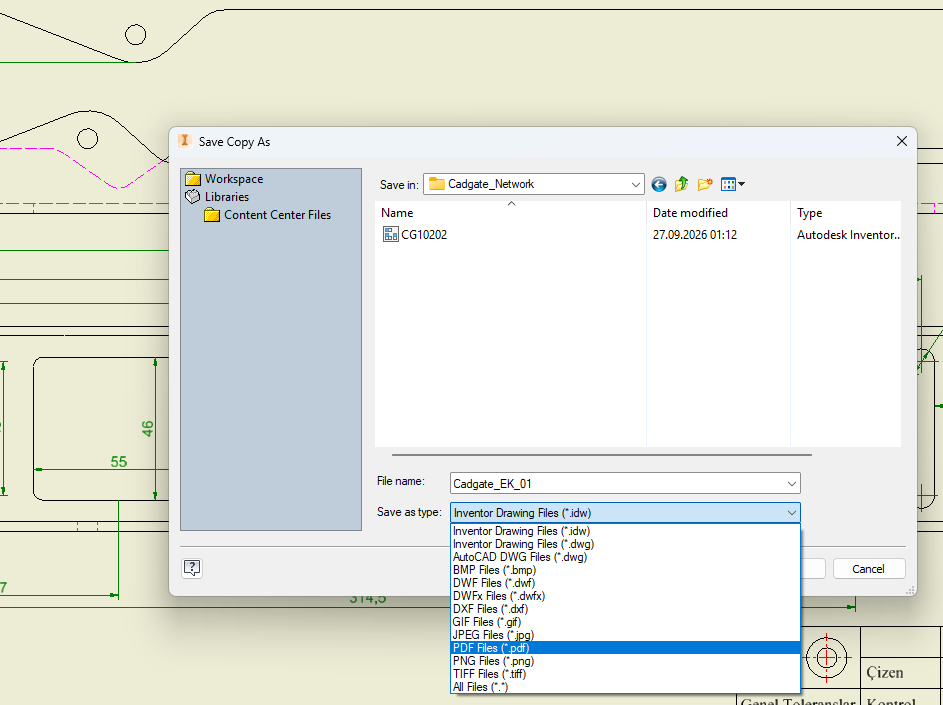
Messy, unnamed files
Perfect naming (e.g. ST37_25mm.dxf)
This repetitive process leads to two major problems:
- High Labor Costs: Engineers are paid to innovate and solve problems, not to perform manual file-saving tasks that a macro could handle in seconds.
- Human Error: Typing material grades (e.g., ST37, AISI 304) or thicknesses manually into file names inevitably leads to typos. A wrong thickness on a DXF file name can result in thousands of dollars of laser-cutting scrap.
Step 1: Standardize Your Sheet Metal Rules First
Before you can effectively automate your exports, your CAD data must be clean. The foundation of accurate DXF extraction lies in properly defining your sheet metal defaults, material settings, and thicknesses.
If your material density and thickness are not correctly defined in the part file (.ipt), the exported data will be incomplete. Use our free Sheet Metal & Material Weight Calculator to quickly verify the exact weight of your flat patterns before sending them to production.
Step 2: Use iProperties for Smart Naming
An exported DXF file named Part1_final_v2.dxf is a nightmare for the laser-cutting operator. Manufacturing teams need metadata directly in the file name. A professional naming convention should look like this:
To achieve this, ensure your Autodesk Inventor iProperties (specifically Part Number and Material) are accurately filled out during the 3D modeling phase. When your iProperties are structured correctly, automation tools can read this data and dynamically generate perfect file names without any manual typing.
The Ultimate Fix: Automating Active Drawings with Smart Exporter
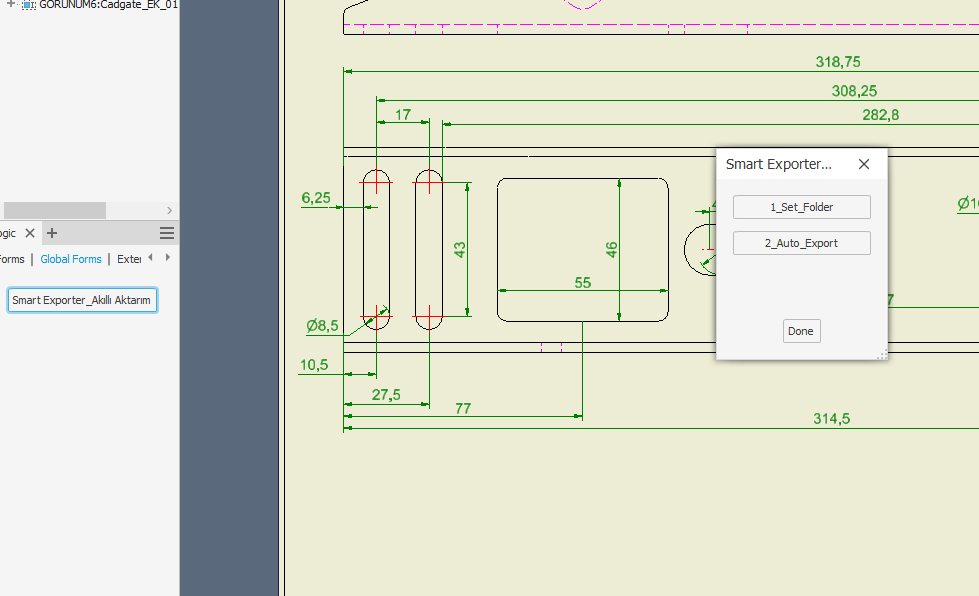
Instead of spending hours selecting formats and typing file names, modern engineering teams rely on custom iLogic macros. This is exactly why we developed Smart Exporter. Built as an easy-to-install external iLogic rule for Autodesk Inventor, it completely eliminates the manual extraction bottleneck.
Once added to your Global Forms, the workflow is incredibly simple:
- Set Your Folder: Click the setup button once to define your destination folder for the project.
- Open Your Drawing: Have your active .idw drawing open on your screen.
- One-Click Export: Click the “Auto Export” button.
Smart Exporter instantly processes the active drawing and generates both PDF and DXF files in your designated folder. Most importantly, it reads the iProperties of your design and automatically names the files using the exact format you need (e.g., CC0010_ST37_25mm.dxf). This ensures error-free archiving and gives your manufacturing department exactly what they need, instantly.
Stop Acting Like a Robot
Focus on real engineering innovation and let the macro do the saving.
Explore Smart Exporter